
 MiniMax H3
Brand Films
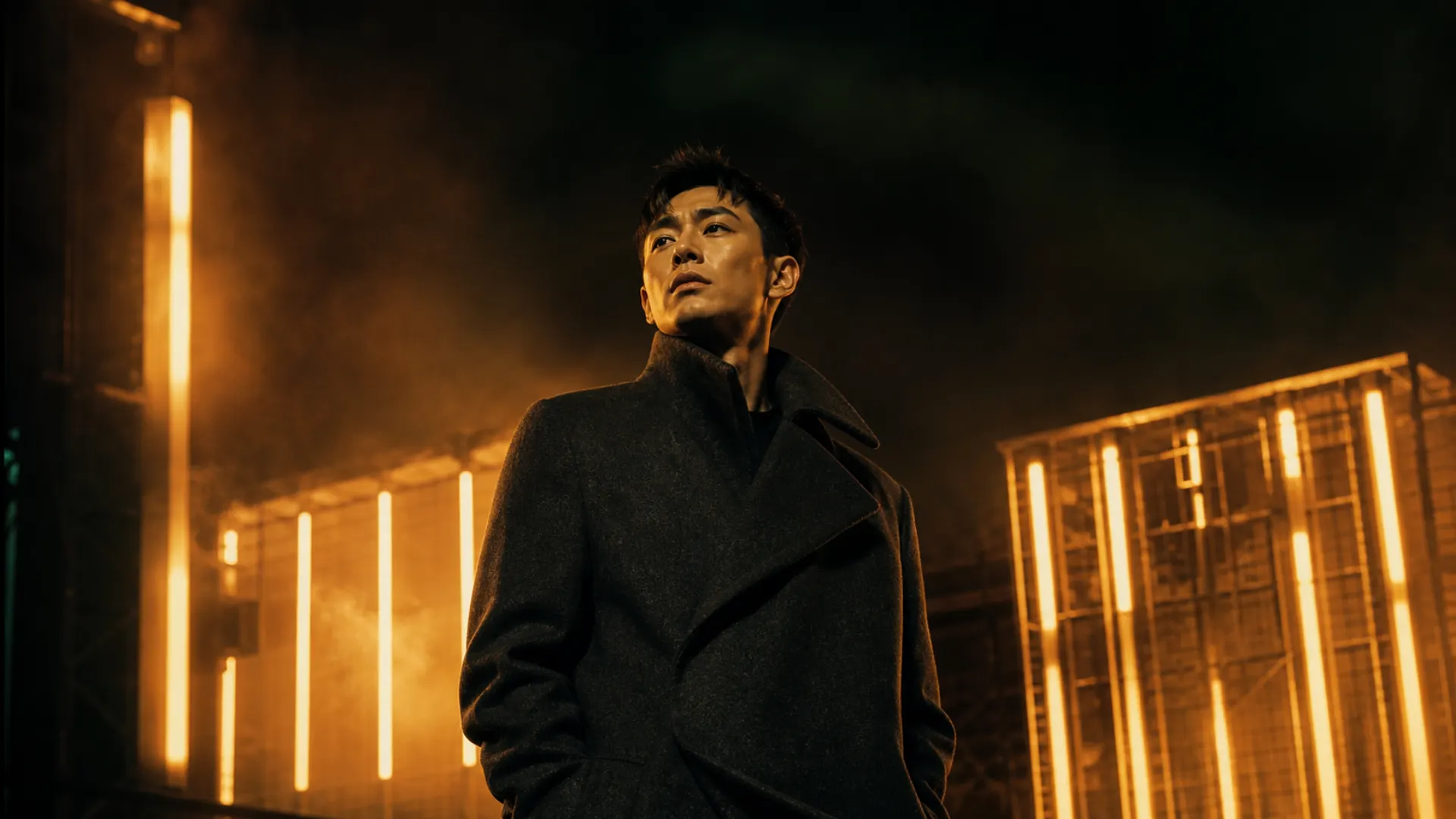
Shape fashion-led campaigns with defined identity, analog texture, lighting, pacing, and edit language.
Direct a firelit editorial campaign with analog texture, confident framing, and a restrained visual identity.
Turn a written brief or still image into a directed video with MiniMax H3. Shape the subject, camera movement, lighting, pacing, and visual treatment from one creative workspace.
Turn your ideas into videos with MiniMax H3.
Combine images, rhythm, transitions, and sound direction in one multimodal brief, then guide the sequence toward a cohesive visual result.
Creative brief


Direction
Coordinate Images 1–6 around the rhythm reference, carrying its movement, tonal contrast, transition energy, and music direction into one cohesive sequence.

Generated output
Rhythm-led composition
Use direct language to change a subject, environment, or visual treatment while preserving the source composition.
Monochrome Motion to Firelit Editorial
Shift monochrome motion into a warm cinematic campaign treatment while keeping the original movement and framing.
“Shift the monochrome motion study into a firelit editorial treatment with amber highlights and deep contrast.”


Creative territory
Explore production-ready directions for editorial campaigns, product reveals, game worlds, and stylized stories with MiniMax H3.
MiniMax H3Shape fashion-led campaigns with defined identity, analog texture, lighting, pacing, and edit language.
Direct a firelit editorial campaign with analog texture, confident framing, and a restrained visual identity.
 MiniMax H3
Reveal form, material, and ergonomic details through controlled product motion and visual explanations.
Present an original ergonomic chair through precise studio lighting, clean material detail, and controlled product framing.
 MiniMax H3
Translate player perspective, environmental cues, interface language, and atmosphere into playable-world concepts.
Frame a non-violent first-person exploration scene with a compact scanner, distant drones, and a restrained original HUD.
 MiniMax H3
Lock a character design while carrying cinematic camera work and story beats through a stylized world.
Carry an original sky-cartographer character through a luminous cinematic fantasy world with a consistent visual identity.
Creative control from one brief
Move from a written idea or source image to a directed video with controls for references, motion, visual continuity, and targeted edits.
MiniMax H3 keeps creative direction connected across generation and refinement, helping every iteration stay aligned with the same brief.
Describe the subject, environment, camera, lighting, and motion in one production-ready brief.
Upload a still and turn it into a moving shot with controlled framing, pacing, and camera direction.
Coordinate image, video, audio, transition, and rhythm references inside one creative direction.
Apply targeted subject, environment, and visual-treatment changes with direct language.
A practical production workflow
Keep ideation, model selection, settings, credits, and generated outputs together in a familiar creative workspace.
Review the active model, output settings, and credit estimate before generating, then return to the same workspace to refine the next version.
Move from idea to generation without rebuilding your direction across disconnected tools.
Choose MiniMax H3, generation mode, aspect ratio, duration, and quality before you spend credits.
Inspect prompts, references, settings, and outputs before starting your own iteration.
Return to the Composer, adjust the brief, and refine the next version from the same page.
The MiniMax H3 workflow keeps the model and output choices visible from the start.
Write a scene brief for Text to Video, or upload a starting image for Image to Video.
Confirm MiniMax H3 in the model menu before configuring the video output.
Select the available aspect ratio, duration, and quality for the shot you need.
Generate the video, review the result, and refine the brief for the next iteration.
See how creators use Seedly.Video to develop, compare, and refine AI video directions.
Seedly.Video gives our team a practical way to explore campaign video directions. We can evaluate product scenes, social hooks, and ad concepts before committing to a larger production cycle.

Sarah Chen
Performance Marketing Lead
Starting from a single product or teaching image, I can explore motion, framing, and pacing without rebuilding the concept from the beginning.

Emily Watson
Course Creator
The reference workflow helps me communicate creative direction visually. I can guide mood, framing, and movement while keeping each version aligned with the original concept.

David Kim
Creative Director
Learn how MiniMax H3 fits into the Seedly.Video creation workflow.
MiniMax H3 is a multimodal video model designed for text- and image-guided generation, reference-driven creative control, and instruction-based video editing.
Choose MiniMax H3 in the Composer, select Text to Video or Image to Video, describe the scene you want, configure the supported output settings, and generate.
Yes. Select Image to Video, upload a starting image, and describe the motion, camera direction, lighting, pacing, and mood you want MiniMax H3 to create.
Adjust the prompt, source image, aspect ratio, duration, or quality, then generate another version from the same Composer. Clear instructions for subject, environment, camera, and treatment make iterations easier to compare.
Credit usage depends on the selected output settings. The Composer shows the applicable estimate before you generate so you can review the cost before submitting the task.
Commercial use depends on your Seedly.Video plan, the applicable model terms, and the rights to every prompt, image, video, audio file, brand, or likeness you provide. Review those terms and secure the required rights before publishing.
Create from text or a still image with MiniMax H3, then refine the motion, framing, and visual direction from the same workspace.